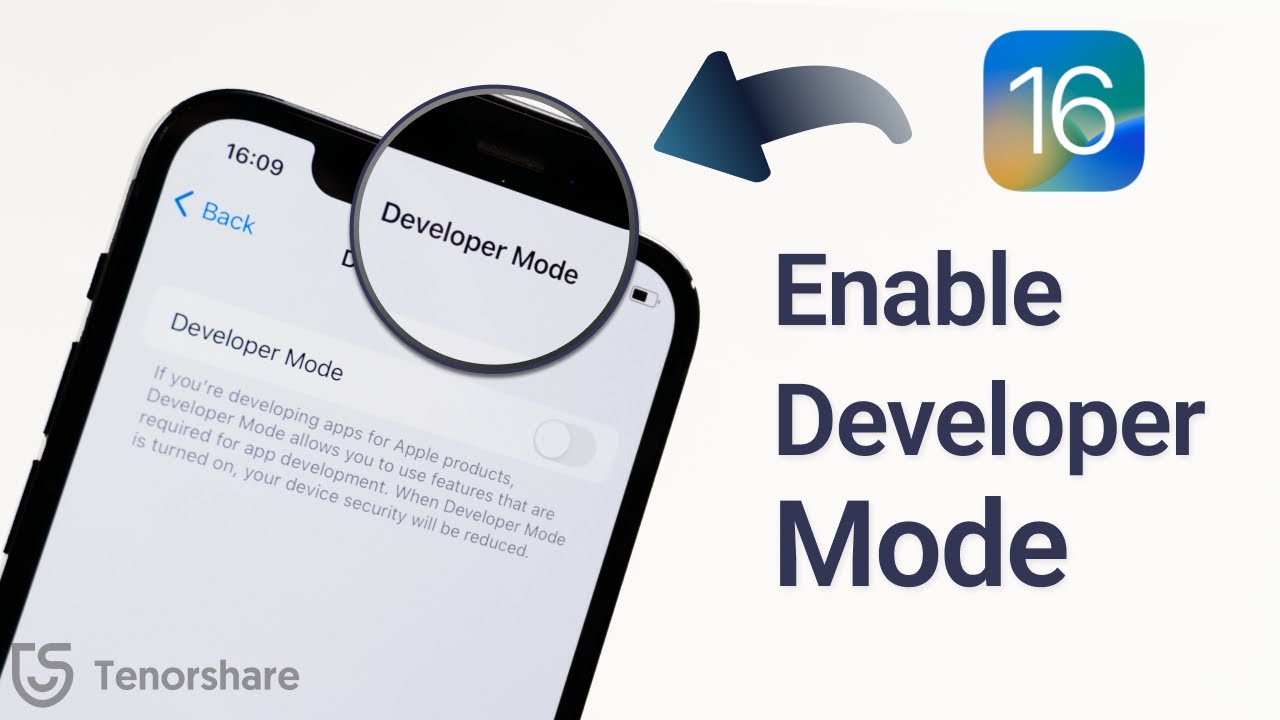
If you’re interested in app development, testing software, or installing apps for development purposes, understanding Developer Mode iPhone is essential. Developer Mode is a security feature introduced by Apple that allows users to run and test developer-signed applications directly on an iPhone. While most everyday users won’t need it, developers and testers often rely on this feature to build, debug, and evaluate apps before they are released to the public.What Is Developer Mode on iPhone?Developer Mode is an optional security setting available on supported versions of iOS. It enables additional functionality needed to run apps that are intended for development and testing rather than downloaded from the App Store.Apple introduced this feature to add another layer of protection, ensuring that users intentionally enable developer-related capabilities before installing or testing development apps.For most users, Developer Mode remains disabled by default.Why Would You Enable Developer Mode?Developer Mode is primarily designed for software developers, testers, and advanced users working with iOS applications.Common reasons to enable it include:Testing apps under developmentDebugging softwareInstalling apps directly from development toolsEvaluating beta applicationsUsing certain developer utilitiesIf you only use apps from the App Store, you typically do not need to enable Developer Mode.Requirements for Developer ModeBefore enabling Developer Mode, ensure that you meet the necessary requirements.Generally, you’ll need:A compatible iPhone running a supported version of iOSA developer-signed app or development workflowAccess to development tools such as Xcode (in many cases)Administrative access to your deviceRequirements may vary depending on your development setup.How to Enable Developer Mode on iPhoneThe exact steps may vary slightly depending on your version of iOS, but the general process is as follows:Step 1: Connect Your Device for DevelopmentIn many development workflows, you’ll first connect your iPhone to a Mac running Xcode or install a developer-signed app.Step 2: Open SettingsGo to:Settings → Privacy & SecurityOn supported devices, you’ll find the Developer Mode option within this section after the necessary development conditions have been met.Step 3: Turn On Developer ModeTap the Developer Mode option and switch it on.Step 4: Restart Your iPhoneYour iPhone will prompt you to restart the device.After restarting, you’ll receive another confirmation asking whether you want to enable Developer Mode.Step 5: Confirm ActivationApprove the prompt to complete the process.Once enabled, your device will be ready for supported development tasks.What Can You Do with Developer Mode?Developer Mode unlocks capabilities that assist with software development and testing.Examples include:Testing AppsDevelopers can install and test applications that are still under development before publishing them.DebuggingDeveloper Mode supports debugging workflows used to identify and fix software issues.Performance EvaluationDevelopers can analyze how applications perform under different conditions and optimize them before release.Internal App DistributionOrganizations may use development tools to distribute test versions of applications to authorized users.Is Developer Mode Safe?Developer Mode itself is a legitimate Apple feature.However, enabling it allows the installation and testing of development apps, which may not have gone through the same review process as App Store apps.To reduce security risks:Install apps only from trusted sources.Keep iOS updated.Use strong device security settings.Disable Developer Mode when you no longer need it.Following these practices helps protect your device and personal information.How to Disable Developer ModeIf you no longer require development features, you can turn Developer Mode off.Typically, the process involves:Opening Settings.Going to Privacy & Security.Selecting Developer Mode.Turning the feature off.Restarting your device if prompted.Disabling the feature restores your device to its standard security configuration.Common Developer Mode IssuesSome users may experience problems while attempting to enable Developer Mode.Developer Mode Option Not AppearingIf the option is missing, it may be because your device has not yet met the conditions required to display it, such as connecting to development tools or installing a developer-signed app.Device Won’t Enable Developer ModeEnsure that:Your iPhone is running a supported version of iOS.The device restart completed successfully.You confirmed the activation prompt after restarting.App Installation ProblemsIf development apps fail to install, verify that your development certificates, provisioning profiles, and software are configured correctly.Who Should Use Developer Mode?Developer Mode is intended for:iOS developersSoftware testersMobile app engineersTechnical professionalsOrganizations testing internal applicationsMost everyday iPhone users will not benefit from enabling this feature.Best Practices When Using Developer ModeTo use Developer Mode responsibly:Install apps only from trusted developers.Keep backups of important data.Update iOS regularly.Review app permissions before installation.Disable Developer Mode when development work is complete.These practices help maintain both productivity and device security.Frequently Asked QuestionsWhat is Developer Mode on iPhone?Developer Mode is an Apple security feature that allows developers and testers to run developer-signed applications for testing and debugging purposes.Do I need Developer Mode for normal iPhone use?No. If you download apps exclusively from the App Store, Developer Mode is generally unnecessary.Where is Developer Mode located?On supported devices, the setting appears under Settings → Privacy & Security after the device has met the conditions required for development.Is Developer Mode available on all iPhones?Developer Mode is available on supported versions of iOS, but availability depends on your device model and operating system version.Can I disable Developer Mode later?Yes. You can turn it off through the Settings app if you no longer need development capabilities.Does enabling Developer Mode affect my data?Enabling Developer Mode itself does not erase your data. However, because development activities can involve installing test software, it’s a good idea to maintain regular backups.ConclusionDeveloper Mode iPhone is a valuable feature for developers, testers, and technical users who need to build, install, and debug iOS applications. It provides access to development-specific functionality while maintaining Apple’s security model through intentional user activation. If you don’t develop or test apps, there’s usually no need to enable it. For those who do, following Apple’s recommended setup process and using trusted development tools can help ensure a secure and efficient experience.